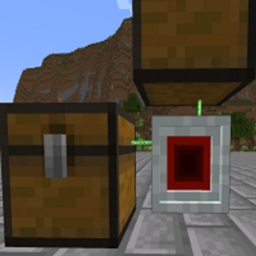
LaserIO in Project Infinity 0.1
Project Infinity 0.1 0.0.51.4-hotfix-2 ships version 1.5.1 · First seen in 0.0.45.4
LaserIO is a mod in Project Infinity 0.1 0.0.51.4-hotfix-2, where it is version 1.5.1. Route Items, Fluids, and Energy around your world - with Lasers! (Summary from the mod's Modrinth page.)
LaserIO guide for Project Infinity 0.1
Last verified for Project Infinity 0.1 v0.0.51.4-hotfix-2 on Oct 17, 2026 · text last changed Oct 17, 2026
- Sections
- 7
- Recipes shown
- 22
- Items named
- 22
- Quests covered
- 6
Every recipe and number here was checked against Project Infinity 0.1 0.0.51.4-hotfix-2, read from the running game on Sep 19, 2026.
What is LaserIO?
2 parts
LaserIO is a logistics mod: you move items, fluids, energy and even redstone signals between blocks without running pipes. This pack includes version 1.5.1.[1][2][3][4][5]
The setup is simple. A Laser Node sits next to your blocks, and cards tell it what to do with each adjacent block. The mod's own guide is blunt about it: without cards, Nodes are worthless.[6][7]
What the cards do
- Item cards send items between inventories, such as chests and furnaces. With no overclockers they move up to 8 items every 20 ticks.[4]
- Fluid cards send fluids between inventories such as tanks, and move more per operation as you add overclockers.[3]
- Energy cards send energy between machines and batteries. They can operate every tick by default and cap at 1,000,000 FE/tick.[2]
- Redstone cards carry redstone signals across the whole network on their own dedicated redstone channel.[5]
- Chemical cards move chemicals between inventories such as Mekanism tanks, and are only available if Mekanism is installed.[8]
Cards only talk to other cards on the same channel, so one network can run several separate routing setups at once. Filters then control what the cards are allowed to move.[9][10]
In the quest book
The pack's quest book has a LaserIO quest, a quest in "Useful mods and Items", in the chapter "Useful mods and Items" (chapter 3 of 44 in the book). The quest asks you to get a Laser Node, an Item Card and a Laser Wrench.[7]
In that chapter's quest listing, the LaserIO quest comes right after the Compact Machines quest ("Compact Machines" quest) and right before the Gateway quest ("Gateway" quest).[7]
How do you get started with LaserIO?
5 parts
LaserIO moves items, fluids, energy and redstone signals between inventories using Laser Nodes and Cards. Here is the order I'd build things in. The pack's quest book covers the same starter set: the quest a quest in "Useful mods and Items" is in the chapter "Useful mods and Items" (chapter 3 of 44) and asks for a Laser Node, an Item Card and a Laser Wrench.[4][7][11][12]
Step one: make Logic Chips
Everything in the mod starts with the Logic Chip. It is the only LaserIO item crafted with vanilla materials, and every later item uses a chip in some way. So sort out a chip supply before anything else.[13]
You craft Raw Logic Chip first (one craft makes four), then smelt it into a chip.[14]
Crafting Shaped
| any redstone dust | any gold nugget | any redstone dust |
| any quartz storage block | ||
| any redstone dust | any gold nugget | any redstone dust |
Recipe id: laserio:logic_chip_raw
The mod's own smelting recipe for the chip.
The pack also adds an Ender IO alloy smelting recipe for the same chip, so you can use that machine instead if you have it.[14]
This recipe is added by the pack.
Step two: Wrench, Node and Connector
Next, make the Laser Wrench. It links Nodes and Connectors: shift-right-click a block to select it, then right-click another block to connect them. The maximum connection range is 8 blocks in this pack, set by general.max_nodes_distance.[12][15]
Crafting Shaped
| any iron ingot | Empty slot | any iron ingot |
| Empty slot | Empty slot | |
| Empty slot | any iron ingot | Empty slot |
Recipe id: laserio:laser_wrench
Handy trick: hold the Wrench in your offhand while placing Nodes and each new one connects to the previous one automatically. This works with Connectors too.[12]
The Laser Node is the most important block in the mod, because it is what interacts with adjacent blocks. Each side has a 3x3 grid of slots for Cards, and you right-click a side to open its screen. One Node can work with several neighbouring inventories at once.[11]
Crafting Shaped
| any iron ingot | any glass panes | any iron ingot |
| any glass panes | any glass panes | |
| any iron ingot | any glass panes | any iron ingot |
Recipe id: laserio:laser_node
If your Nodes are further apart than 8 blocks, the Laser Connector is a cheaper stepping stone between them. Keep it in mind for later, you don't need it for a first setup.[11][16]
Crafting Shaped
| Empty slot | any glass | Empty slot |
| any redstone dust | any redstone dust | |
| any iron ingot | any iron ingot | any iron ingot |
Recipe id: laserio:laser_connector
Step three: your first Item Card
Cards are how Nodes talk to the blocks next to them, and without them a Node does nothing. The Item Card sends items between inventories such as chests and furnaces.[4][6]
Crafting Shaped
| any redstone dust | any lapi gems | any redstone dust |
| any quartz gem | any quartz gem | |
| any gold nugget | any gold nugget | any gold nugget |
Recipe id: laserio:card_item
Item, Fluid and Energy cards currently support three modes: Insert, Extract and Stock. Extract cards attempt to remove items from their adjacent block and send them to an Insert card.[17]
A simple first setup
- Place a Node between two chests, one on each side of it.[11]
- Right-click the Node side facing the source chest and put an Item Card in a slot. Right-click the card to open its settings and set it to Extract.[11][17][18]
- Do the same on the side facing the destination chest, but set that card to Insert.[11][17]
- Check that both cards use the same channel. Cards only interact with other cards on the same channel.[9]
Without Overclockers, an Item Card moves up to 8 items every 20 ticks. In this pack, card.item_card.min_ticks_item is set to 20, 16, 12, 8 and 4 ticks, from no Overclockers up to four. Adding Logistic Overclocker items speeds the card up later.[4][15]
Good next steps
Once the basic setup works, the Card Holder is a nice quality-of-life item. Cards in it stack up to 64 when their NBT data matches, and shift-right-clicking it makes it start pulling cards from your inventory.[19]
Crafting Shaped
| any iron ingot | Empty slot | any iron ingot |
| any chest | any chest | |
| any iron ingot | Empty slot | any iron ingot |
Recipe id: laserio:card_holder
After that, make Basic Filter items to control exactly what a card is allowed to move. One craft gives you four.[10][14]
Crafting Shaped
| any glass panes | ||
| any glass panes | any glass panes | |
| any glass panes |
Recipe id: laserio:filter_basic
How does LaserIO work?
8 parts
Everything in LaserIO runs through the Laser Node. A node does nothing on its own: cards placed in it decide how it interacts with the blocks next to it, whether that means moving items, fluids, energy or redstone signals. Each side of a node has a 3x3 grid of card slots, and one node can work with several adjacent inventories at once.[6][11]
Networks and range
You link nodes with the Laser Wrench: shift-right-click one block to select it, then right-click another to connect them. In this pack the maximum distance between two connected nodes is 8 blocks, set by general.max_nodes_distance. The wrench and the Card Cloner can only reach nodes within the range of general.max_interaction_range, which is 10 here.[11][12][15]
Placing a lot of nodes? Hold the Laser Wrench in your offhand while you place them and each new node connects to the previous one automatically. This works with connectors too. The block you currently have selected with the wrench is highlighted green.[12]
When nodes are further apart than that, use a Laser Connector. It is a cheaper intermediate point between nodes, so you can chain inventories into one big network.[11][16]
The Advanced Laser Connector connects to basic connectors and nodes up to 8 blocks away, but it can only be linked to one other Advanced Connector, forming a pair. The distance between the pair is unlimited, even across dimensions. If you pair an already-paired connector with a new partner, the old link breaks. With the wrench in hand you can see the partner's coordinates.[20]
Network color and laser transparency (Alpha and Wrench Alpha) are set from the Network Settings screen in any node. It is purely cosmetic and spreads to every node on the same network. The Card Cloner can copy these settings too.[21][22]
Card modes
Among the modes currently available, Item, Fluid and Energy cards each support the same three. Chemical Card cards move Chemicals, for example between Mekanism tanks, and are only available if Mekanism is installed.[8][17]
- Insert (a currently available mode): a valid destination for things pulled by Extract cards.[17]
- Extract (a currently available mode): removes things from the adjacent block and sends them to an Insert card.[17]
- Stock (a currently available mode): looks for the items in its filter and pulls them from Insert cards on the same network. It needs a filter set to Allow.[17]
- Sensor (a currently available mode): moves nothing. It checks an adjacent inventory, tank or cell against its filter and emits a redstone signal of strength 15 on its redstone channel if it matches. It does nothing without a filter.[17][23]
Cards only talk to other cards on the same channel. That lets one network carry several separate routes. For example, an Extract Card on the Orange channel with a cobblestone filter and another on the Black channel with a coal filter can feed the top and bottom of a furnace separately.[9]
Routing controls
- Sneaky picks which side of the adjacent block the card works on. A furnace takes items from the top, so an Insert card set to Up feeds it, and another set to Down can feed fuel in the bottom.[24]
- Priority (Insert mode only): by default inserters are used nearest first. A higher priority number is served first, so 10 beats 0, which beats -10. Equal priorities fall back to nearest first.[25]
- Round Robin (Extract mode only) has three settings. False fills the first inventory completely before the next. True spreads items evenly in priority order. Enforced works like True, but the extractor stops if one destination is full.[26]
- Exact (Extract and Stock only) makes an extractor wait until the full Extract Amount is available. For Stock cards it needs whichever is smaller, the amount still needed or the Extract Amount, to be available in the network.[27]
- Regulate (Stock mode only) keeps exactly the amount set by a Counting Filter. With it off, extra items are left alone. With it on, the excess is removed if an inserter can accept it.[28]
- Redstone mode defaults to Ignored, so the card always works. Low means it only works with no signal on its redstone channel, and High only with a signal. The redstone channel is separate from the normal channel.[29][30]
Speeds and overclockers
Item cards move at most 8 items every 20 ticks with no overclockers. With 4 Logistic Overclockers installed they reach 64 items every 4 ticks. In this pack the tick steps come from card.item_card.min_ticks_item, set to 20, 16, 12, 8 and 4 for 0 to 4 overclockers.[4][15][31]
Fluid and Chemical cards scale the same way. The pack config sets a base amount and a per-overclocker multiplier for each. The maximum per operation is the number of overclockers times the multiplier, and the operation can be as fast as every 4 ticks with 4 overclockers.[3][8][15]
- Fluid Card: 5,000 mB per operation with no overclockers, then the multiplier of 10,000 mB per overclocker applies. Set by card.fluid_card.base_milli_buckets_fluid, card.fluid_card.multiplier_milli_buckets_fluid and card.fluid_card.min_ticks_fluid.[3][15]
- Chemical Card: 15,000 mB per operation with no overclockers, then the multiplier of 60,000 mB per overclocker applies. Set by card.chemical_card.base_milli_buckets_chemical, card.chemical_card.multiplier_milli_buckets_chemical and card.chemical_card.min_ticks_chemical.[8][15]
For Extract and Stock cards, Extract Amount defaults to 1 and tops out at 8 without overclockers. Each extra overclocker raises the cap to 16, 32, 48 and finally 64. Tick Speed defaults to 20 and can be raised to 1200. Left click raises these values by 1 and right click lowers them. Shift multiplies the step by 10 and control by 64.[4][32][33]
Energy Cards work differently. They can't take overclockers and already operate every tick by default, up to 1,000,000 FE per operation. In this pack that is card.energy_card.max_fe_no_tiers and card.energy_card.min_ticks_energy. The three Energy Overclocker tier lists (card.energy_card.energy_overclockers.max_fe_tiers, card.energy_card.energy_overclockers.name_tiers and card.energy_card.energy_overclockers.color_tiers) are empty here, so no extra tiers are defined.[2][15]
Energy Cards also have an Energy Limit %. On Insert and Stock it defaults to 100% and sets how full the target gets. On Extract it defaults to 0% and sets how much is left behind. For example, extracting from a 1,000,000 FE cell with a 25% limit stops at 250,000 FE. This indicator doesn't work on storage above about 2.14 billion FE.[2][34]
Node Overclockers speed up a whole side of a node rather than a single card. A node operates on only one card per side per tick, and the others only run if the first did nothing. Installing 8 Node Overclockers lets all 9 slots on a side work. Only Extract and Stock cards need them, Inserters don't.[35]
Filters
Filters control what cards may move. Right-click one to open it, or open it from inside a card. Most filters have Allow or Deny, plus a Compare NBT toggle. With Compare NBT on, a damaged or enchanted sword is treated as different from a fresh one.[36]
- Basic Filter: a list of ghost slots that only hold an image of an item. With JEI you can drag items into them.[37]
- Counting Filter: sets a number from 1 to 4096. On Stock cards it is the amount to keep in stock. On Insert cards it limits how much can be sent in. On Extract cards it is the amount left behind. All Counting Filters use Allow mode.[38]
- Mod Filter: matches by the mod an item comes from.[39]
- Tag Filter: matches by item tags, such as forge:ingots. The list is an 'or' list, and it has no NBT comparison.[40]
- NBT Filter: matches items that have chosen NBT tags, whatever their values. For example, the Enchantments tag separates enchanted items from plain ones.[41]
On Sensor cards, a Basic Filter matches any amount, while a Counting Filter matches at or above its number unless you enable its exact button. The And/Or button decides whether all filter entries or just one must match. Keep to one sensor card per side per redstone channel, since more can cause race conditions.[23]
Redstone cards
The Redstone Card sends redstone signals across the whole network on its own redstone channel. It has two modes.[5]
- Input: takes a signal from dust, a lever or a button and sends it on the card's redstone channel. Interval mode adds Lower bound, Upper bound and Output. A signal is sent when it falls within the bounds, at the Output strength.[5]
- Output: emits a signal to blocks like dust, lamps or repeaters. Weak only reaches directly adjacent blocks, while Strong can pass through an adjacent block like a lever does. Complementary emits 15 minus the channel signal. NOT emits 15 only when the channel has none.[5]
- Logic Operation: uses a second redstone channel for OR, AND or XOR. Combined with Complementary or NOT you get NOR, NAND and XNOR.[5]
Card Holder and Card Cloner
The Card Holder stores cards, which stack to 64 if their NBT matches. If a card stack is bigger than 1, its Filter and Overclocker slots are disabled to prevent duping. Shift-right-click toggles automatic pulling of cards from your inventory, and the holder glows while it is on. Filters and Overclockers can be stored too, but filters with saved data must be added by hand. Crafting a card or filter by itself resets its NBT.[19]
The Card Cloner copies and pastes settings. In a node screen, left-click a card to copy it and right-click a card or empty slot to paste. In the world, shift-right-click a node to copy it, and right-click while not looking at a node to switch the paste mode between Node contents and Network settings. Pasting takes the needed cards, filters and overclockers from the currently available Card Holder, not from your inventory. If anything is missing the paste fails entirely rather than partly applying.[22]
Crafting notes for this pack
Logic Chips are the base of the mod's crafting, and everything else uses one in some way. This pack adds an Ender IO alloy smelting recipe for them, alongside the mod's own smelting recipe. The pack also changed the Chemical Card recipe.[13][14]
Added by the pack.
Crafting Shaped
| any redstone dust | any basic circuit | any redstone dust |
| any quartz gem | any quartz gem | |
| any gold nugget | any gold nugget | any gold nugget |
Recipe id: laserio:card_chemical
Changed by the pack.
How do you progress through LaserIO?
5 parts
LaserIO has no named tier ladder in this pack. You progress by unlocking things in order: Logic Chips first, then the network blocks, then cards, filters and overclockers, then the storage and long-range pieces. The quest book has one quest for it, a quest in "Useful mods and Items", in the "Useful mods and Items" chapter (chapter 3 of 44). It asks for the Laser Node, the Item Card and the Laser Wrench. The rest of the mod is not on the quest path, so the order below follows the recipes.[7][14]
Step 1: Logic Chips
Nearly everything in the mod starts from the Logic Chip, so make a stack of them first. You craft Raw Logic Chip in bulk (the recipe gives 4 per craft), then smelt them into finished chips.[14]
Crafting Shaped
| any redstone dust | any gold nugget | any redstone dust |
| any quartz storage block | ||
| any redstone dust | any gold nugget | any redstone dust |
Recipe id: laserio:logic_chip_raw
The mod's own smelting recipe.
The pack also adds an Ender IO alloy smelting recipe for the same chip.[14]
Added by the pack.
Step 2: The core network
The Laser Connector links up to other connectors and nodes, and the Laser Node is the block that holds your cards. The Laser Wrench is the third item the quest asks for. Make the connector first, since the node builds on it.[6][7][14][20]
Crafting Shaped
| Empty slot | any glass | Empty slot |
| any redstone dust | any redstone dust | |
| any iron ingot | any iron ingot | any iron ingot |
Recipe id: laserio:laser_connector
Crafting Shaped
| any iron ingot | any glass panes | any iron ingot |
| any glass panes | any glass panes | |
| any iron ingot | any glass panes | any iron ingot |
Recipe id: laserio:laser_node
Crafting Shaped
| any iron ingot | Empty slot | any iron ingot |
| Empty slot | Empty slot | |
| Empty slot | any iron ingot | Empty slot |
Recipe id: laserio:laser_wrench
Step 3: Cards
Cards are how a Node interacts with the blocks next to it. Without them a Node is worthless. The Item Card is the first one you need, and it sends items between inventories such as chests and furnaces.[4][6]
Crafting Shaped
| any redstone dust | any lapi gems | any redstone dust |
| any quartz gem | any quartz gem | |
| any gold nugget | any gold nugget | any gold nugget |
Recipe id: laserio:card_item
Beyond the Item Card there are cards for other jobs: Redstone Card sends redstone signals across the network, Fluid Card moves fluids between tanks, and Energy Card moves energy between machines and batteries. The Chemical Card sends chemicals between inventories such as Mekanism tanks, and is only available if Mekanism is installed. The pack changed the Chemical Card, so use the version shown below.[2][3][5][8][14]
Crafting Shaped
| any redstone dust | any redstone dust | any redstone dust |
| any quartz gem | any quartz gem | |
| any gold nugget | any gold nugget | any gold nugget |
Recipe id: laserio:card_redstone
Crafting Shaped
| any redstone dust | any redstone dust | |
| any quartz gem | any quartz gem | |
| any gold nugget | any gold nugget | any gold nugget |
Recipe id: laserio:card_fluid
Crafting Shaped
| any redstone dust | any redstone storage block | any redstone dust |
| any quartz gem | any quartz gem | |
| any gold nugget | any gold nugget | any gold nugget |
Recipe id: laserio:card_energy
Crafting Shaped
| any redstone dust | any basic circuit | any redstone dust |
| any quartz gem | any quartz gem | |
| any gold nugget | any gold nugget | any gold nugget |
Recipe id: laserio:card_chemical
Changed by the pack.
Step 4: Filters and overclockers
Filters control what cards are allowed to move. The Basic Filter comes first, and the Counting Filter, Mod Filter, NBT Filter and Tag Filter all build on it. Their recipes are shown below.[10][14]
Crafting Shaped
| any glass panes | ||
| any glass panes | any glass panes | |
| any glass panes |
Recipe id: laserio:filter_basic
The Logistic Overclocker speeds cards up, and there is a separate Node Overclocker item as well. The in-game guide lists maximum throughput for 0 to 4 overclockers per card type. Fluid and Chemical Cards have their own tables there too.[3][4][8][14][22]
- Item Card: 8 items per 20 ticks with no overclockers, up to 64 items per 4 ticks with 4.[4]
- Energy Card: overclockers can't go into it. It runs every tick at up to 1,000,000 FE per tick, and you can lower that.[2]
Crafting Shaped
| Empty slot | any gold ingot | Empty slot |
| any redstone dust | any redstone dust | |
| any gold ingot | any gold ingot | any gold ingot |
Recipe id: laserio:overclocker_card
Crafting Shaped
| Empty slot | any diamond gem | Empty slot |
| any redstone dust | any redstone dust | |
| any diamond gem | any diamond gem | any diamond gem |
Recipe id: laserio:overclocker_node
Step 5: Organising and going long range
Once you have a pile of cards, the Card Holder stores them in stacks of up to 64 when their data matches. The Card Cloner copies settings from one card to another, and can copy an entire Node.[19][22]
Crafting Shaped
| any iron ingot | Empty slot | any iron ingot |
| any chest | any chest | |
| any iron ingot | Empty slot | any iron ingot |
Recipe id: laserio:card_holder
Crafting Shaped
| any iron ingot | Empty slot | any iron ingot |
| any iron ingot | Empty slot | any iron ingot |
Recipe id: laserio:card_cloner
The Advanced Laser Connector is the long-range piece. It connects to basic connectors and nodes up to 8 blocks away, but it pairs with only one other Advanced Connector. That link has infinite range, even across dimensions. It is crafted from a regular Laser Connector.[14][20]
Crafting Shaped
| any ender pearl | any diamond gem | any ender pearl |
| any redstone dust | any redstone dust | |
| any gold ingot | any gold ingot | any gold ingot |
Recipe id: laserio:laser_connector_advanced
How does LaserIO work with other mods?
3 parts
LaserIO has only a small footprint alongside the other mods in this pack. Here is what the recipes, the quest book and the in-game guide confirm.[6][7][14]
A Patchouli book recipe
The pack has a shapeless crafting recipe under the LaserIO namespace that produces the Guide Book. It is built around the Logic Chip and the Book, and it is marked as changed by the pack, so don't assume it matches what the mod ships with. The exact in-pack recipe is shown below.[14]
This is the pack's own version of the recipe, marked as changed by the pack.
In the quest book
The pack's quest book has one LaserIO quest, a quest in "Useful mods and Items", in the chapter "Useful mods and Items" (chapter 3 of 44). It asks you to get the Laser Node, the Item Card and the Laser Wrench. The mod's own guide explains why you need the cards: they are how Nodes interact with adjacent blocks, and without them Nodes are worthless.[6][7]
The same chapter also has quests that ask you to collect items from other mods, including a quest in "Useful mods and Items", "Curvy Pipes" quest and "Flux Network" quest. These only show what the quest book asks you to get, not how LaserIO works with those mods.[7]
Mekanism and energy storage
LaserIO's in-game guide says Chemical Cards send chemicals between inventories, such as Mekanism tanks, and that these cards are only available if Mekanism is installed.[8]
Energy Cards move Forge Energy between inventories such as machines and batteries. The guide notes that mods like Draconic Evolution or Mekanism have storage cells that can hold more than about 2.14 billion FE. On those cells the card's Energy Limit % setting won't work.[2]
Which Project Infinity 0.1 quests use LaserIO?
The pack's quest book asks for LaserIO items in one quest, in the chapter "Useful mods and Items".[7]
The quest is a quest in "Useful mods and Items". The book gives it no title of its own, so it is named after the Item Card it asks for. It has three tasks, one for each of these items:[7]
Those are the three items the quest asks you to obtain. Within this chapter, it is the only quest that asks for LaserIO items.[7]
The rest of the chapter asks for items from other mods, such as a quest in "Useful mods and Items" for Modular Router and "Curvy Pipes" quest for Curvy Pipes.[7]
Which LaserIO config options matter?
4 parts
LaserIO keeps all its settings in one file, config/laserio-common.toml. Here is how this pack sets the options you are most likely to care about: how far Nodes reach, and how much each card can move.[15]
Node range
- general.max_nodes_distance is 8. This is the maximum distance between two connected Nodes.[15]
- general.max_interaction_range is 10. This is how far away you can interact with Nodes when using a Laser Wrench or Card Cloner.[15]
Item card speed
card.item_card.min_ticks_item is [20,16,12,8,4]. The first number is the minimum ticks per operation with no Logistic Overclockers, and the last is with all four installed. So the card gets faster with every overclocker you add.[15]
Fluid and chemical cards
Both card types use the same tick scale as item cards: [20,16,12,8,4], from no overclockers up to all four. They differ in how many millibuckets they move. The base value applies with no overclockers, and each overclocker adds the multiplier on top of it.[15]
- Fluid cards: card.fluid_card.base_milli_buckets_fluid is 5,000 and card.fluid_card.multiplier_milli_buckets_fluid is 10,000. Speed is set by card.fluid_card.min_ticks_fluid.[15]
- Chemical cards: card.chemical_card.base_milli_buckets_chemical is 15,000 and card.chemical_card.multiplier_milli_buckets_chemical is 60,000. Speed is set by card.chemical_card.min_ticks_chemical.[15]
Energy cards
card.energy_card.max_fe_no_tiers is 1,000,000. This is the maximum FE per operation for Energy Cards, not counting Energy Overclockers if any are defined. card.energy_card.min_ticks_energy is 1, the minimum ticks per operation.[15]
The pack leaves card.energy_card.energy_overclockers.max_fe_tiers, card.energy_card.energy_overclockers.name_tiers and card.energy_card.energy_overclockers.color_tiers as empty lists. The file says these options are meant for pack developers and that no recipes are generated for such overclockers. This pack therefore defines no custom Energy Overclocker tiers.[15]
Unverified The pack file only shows the values this pack uses. It does not show the mod's own defaults, so which of these values the pack changed from default is unverified.
Sources
- Project Infinity 0.1 0.0.51.4-hotfix-2 mod list · pack file
- In-game guide: Energy Cards (laserio) · official docs
- In-game guide: Fluid Cards (laserio) · official docs
- In-game guide: Item Cards (laserio) · official docs
- In-game guide: Redstone Cards (laserio) · official docs
- In-game guide: Cards (laserio) · official docs
- Project Infinity 0.1 0.0.51.4-hotfix-2 quests: "Useful mods and Items" · quest text
- In-game guide: Chemical Cards (laserio) · official docs
- In-game guide: Channel (laserio) · official docs
- In-game guide: Filters (laserio) · official docs
- In-game guide: Laser Node (laserio) · official docs
- In-game guide: Laser Wrench (laserio) · official docs
- In-game guide: Logic Chips (laserio) · official docs
- Project Infinity 0.1 0.0.51.4-hotfix-2 recipe dump: recipes making LaserIO items · pack recipe dump
- Project Infinity 0.1 0.0.51.4-hotfix-2 config: config/laserio-common.toml · pack file
- In-game guide: Laser Connector (laserio) · official docs
- In-game guide: Modes (laserio) · official docs
- In-game guide: Basics (laserio) · official docs
- In-game guide: Card Holder (laserio) · official docs
- In-game guide: Adv. Connector (laserio) · official docs
- In-game guide: Network Settings (laserio) · official docs
- In-game guide: Card Cloner (laserio) · official docs
- In-game guide: Sensor Mode (laserio) · official docs
- In-game guide: Sneaky (laserio) · official docs
- In-game guide: Priority (laserio) · official docs
- In-game guide: Round Robin (laserio) · official docs
- In-game guide: Exact (laserio) · official docs
- In-game guide: Regulate (laserio) · official docs
- In-game guide: Redstone Mode (laserio) · official docs
- In-game guide: Redstone Channel (laserio) · official docs
- In-game guide: Logistic Overclocker (laserio) · official docs
- In-game guide: Extract Amount (laserio) · official docs
- In-game guide: Tick Speed (laserio) · official docs
- In-game guide: Limit (laserio) · official docs
- In-game guide: Node Overclocker (laserio) · official docs
- In-game guide: Basic Mechanics (laserio) · official docs
- In-game guide: Basic Filter (laserio) · official docs
- In-game guide: Counting Filter (laserio) · official docs
- In-game guide: Mod Filter (laserio) · official docs
- In-game guide: Tag Filter (laserio) · official docs
- In-game guide: NBT Filter (laserio) · official docs
Where this guide comes from
Written from what Project Infinity 0.1 itself ships: its files and recipes, the in-game guidebooks and the mods' own pages. Every statement links to the source it came from, and the numbers are checked against the pack before publishing.
Guide last verified Oct 17, 2026.
Report wrong info
Version in each release
23 releases, first in 0.0.45.4
| Project Infinity 0.1 | Version | Jar | Where it came from |
|---|---|---|---|
| 0.0.51.4-hotfix-2 Sep 16, 2026 | 1.5.1 | laserio-uel-1.5.1.jar | From the published release |
| 0.0.51.4-hotfix-1 Sep 15, 2026 | 1.5.1 | laserio-uel-1.5.1.jar | From the published release |
| 0.0.51.4 Sep 14, 2026 | 1.5.1 | laserio-uel-1.5.1.jar | From the published release |
| 0.0.51.3-HOTFIX Aug 16, 2026 | 1.5.1 | laserio-uel-1.5.1.jar | From the published release |
| 0.0.51.3 Aug 15, 2026 | 1.5.1 | laserio-uel-1.5.1.jar | From the published release |
| 0.0.51.2 Aug 11, 2026 | 1.5.1 | laserio-uel-1.5.1.jar | From the published release |
| 0.0.51.1 Jul 31, 2026 | 1.5.1 | laserio-uel-1.5.1.jar | From the published release |
| 0.0.50.2-hotfix Jun 22, 2026 | 1.5.0 | laserio-uel-1.5.0.jar | From the published release |
| 0.0.50.1 Jun 18, 2026 | 1.5.0 | laserio-uel-1.5.0.jar | From the published release |
| 0.0.50.0 Jun 16, 2026 | 1.5.0 | laserio-uel-1.5.0.jar | From the published release |
| 0.0.49.3 May 17, 2026 | 1.5.0 | laserio-uel-1.5.0.jar | From the published release |
| 0.0.49.2 May 13, 2026 | 1.5.0 | laserio-uel-1.5.0.jar | From the published release |
| 0.0.49.1 May 11, 2026 | 1.5.0 | laserio-uel-1.5.0.jar | From the published release |
| 0.0.49.0 May 10, 2026 | 1.5.0 | laserio-uel-1.5.0.jar | From the published release |
| 0.0.48.2 Apr 23, 2026 | 1.5.0 | laserio-uel-1.5.0.jar | From the published release |
| 0.0.48.1 Apr 12, 2026 | 1.5.0 | laserio-uel-1.5.0.jar | From the published release |
| 0.0.48.0 Apr 11, 2026 | 1.5.0 | laserio-uel-1.5.0.jar | From the published release |
| 0.0.47.3 Mar 6, 2026 | 1.5.0 | laserio-uel-1.5.0.jar | From the published release |
| 0.0.47.1 Feb 2, 2026 | 1.5.0 | laserio-uel-1.5.0.jar | From the published release |
| 0.0.47.0 Feb 1, 2026 | 1.5.0 | laserio-uel-1.5.0.jar | From the published release |
| 0.0.46.1 Jan 6, 2026 | 1.5.0 | laserio-uel-1.5.0.jar | From the published release |
| 0.0.46.0 Jan 4, 2026 | 1.5.0 | laserio-uel-1.5.0.jar | From the published release |
| 0.0.45.4 Dec 23, 2025 | 1.5.0 | laserio-uel-1.5.0.jar | From the published release |
"From pack files" means the list came from the pack's own files; "from the published release" means ForgeBase read the jars of the release itself.
Items and blocks
20 items from the 0.0.51.4-hotfix-2 recipe dump.
Project Infinity 0.1 quests (1)
Quests from the pack's FTB Quests book that ask for this mod's items.
Useful mods and Items (1)
- A quest in "Useful mods and Items"
Config options (how Project Infinity 0.1 sets them)
14 settings this pack ships for the mod. We don't have the mod's own defaults to compare them against yet.
Show settings
| Setting | Project Infinity 0.1 value |
|---|---|
card.chemical_card.base_milli_buckets_chemical Millibuckets for Chemical Cards without Overclockers installed config/laserio-common.toml | 15000 |
card.chemical_card.min_ticks_chemical Minimum ticks/operation, the first element is with no Logistic Overclockers, the last one is with all four config/laserio-common.toml | [20,16,12,8,4] |
card.chemical_card.multiplier_milli_buckets_chemical Multiplier for Overclocker Cards - Number of Overclockers * multiplier_milli_buckets_chemical = max millibuckets config/laserio-common.toml | 60000 |
card.energy_card.energy_overclockers.color_tiers By adding values to this list, Energy Overclocker(s') color(s) can be chosen (1 value for each tier). Each color must be provided as a string using its octal, decimal, or hexadecimal representation. Example with tier 1 as blue, 2 as green, and 3 as red: ["0377", "65280", "#ff0000"] Note: Default colors will be generated if this list is empty/doesn't contain enough elements config/laserio-common.toml | [] |
card.energy_card.energy_overclockers.max_fe_tiers By adding values to this list, Energy Overclocker(s') will be generated (1 tier for each value). The maximum FE/operation for each tier is specified using this list. Ex: [512, 2000, 51873] Note: Since this is a feature meant for pack developers, no recipes will be generated config/laserio-common.toml | [] |
card.energy_card.energy_overclockers.name_tiers By adding values to this list, Energy Overclocker(s') name(s) can be chosen (1 value for each tier). Normal string rules apply. Ex: ["name", "longer name", "NaME wiTh CapiTAL lETters"] Note: Default names will be generated if this list is empty/doesn't contain enough elements config/laserio-common.toml | [] |
Comments and tips
Loading comments...