Energy Meter in FTB Skies 2: Aero
FTB Skies 2: Aero 1.13.0 ships version 1.21.1-0.5.2 · First seen in 1.0.3
Energy Meter is a mod in FTB Skies 2: Aero 1.13.0, where it is version 1.21.1-0.5.2. Easily measure your energy rates. (Summary from the mod's Modrinth page.)
Energy Meter guide for FTB Skies 2: Aero
Last verified for FTB Skies 2: Aero v1.10.0 on Oct 17, 2026 · text last changed Oct 17, 2026
This is the newest guide. It hasn't been checked against 1.13.0 yet.
Also applies to:All the Mods 11 0.5.0-beta to 0.12.0-betaFTB Evolution 2 1.0.2 to 1.4.0FTB StoneBlock 4 1.9.4 to 1.23.0
- Sections
- 6
- Recipes shown
- 2
- Items named
- 2
4 sections are written for this pack; 2 are shared from another pack's guide.
Every recipe and number here was checked against FTB Skies 2: Aero 1.10.0, read from the running game on Sep 22, 2026.
What is Energy Meter?
2 parts
Same as in the All the Mods 11 0.8.0-beta guide
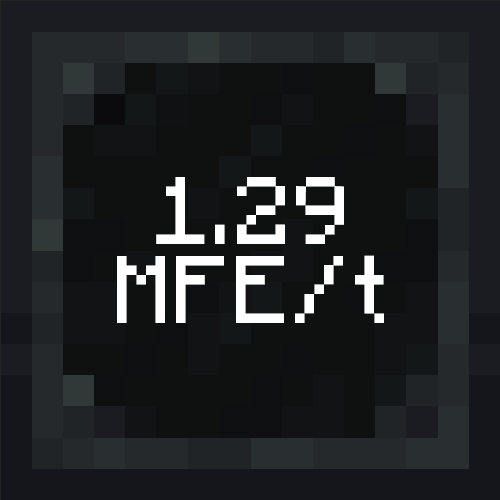
Energy Meter adds one simple block that measures how fast energy moves through your setup. It has a screen on its front that always shows the current rate, so you can check a machine line or cable run at a glance.[1][2]
This pack ships version 26.1.2-0.5.0 of the NeoForge build. It is a complete rewrite and not an official update or port of the older Energy Meters mod, though it credits that mod's original author for the idea.[1][3]
How the block works
The meter acts like a cable. Incoming energy requests are forwarded to its outputs, and the values of those requests are stored and used at a configurable interval to calculate the flow rate.[2]
The display on the front can be rotated in any direction, including up and down. Because the front is used for the screen, only the other five sides can be set as input or output. In the interface you can set each side as an input, an output, or disabled.[2][4]
What you can configure
- A graph view in the interface shows the last 10 intervals, and you can pause it.[2]
- Transfer mode: Split (the default) shares incoming energy evenly across outputs. Transfer lets you give outputs priorities. Consume deletes incoming energy, which is handy for testing setups.[4]
- Measuring mode: Instant (the default) only uses the current interval. Smoothed also factors in the previous interval, which calms sudden spikes.[4]
- You can change the measurement interval and the calculation mode, and the interface also offers a transfer limit setting.[2][4]
How do you get started with Energy Meter?
4 parts
Energy Meter is a small mod, and getting started with it is quick. Its main block, the Energy Meter, measures energy flow rates. It works like a cable: incoming energy requests are forwarded to its outputs, and the values are stored and used at a set interval to calculate the flow rate.[5]
Step 1: Craft the Energy Meter
Start with the Energy Meter. It is the core block of the mod, and everything else here comes after it. Pay attention to the recipe below, because this pack changed it from the mod's own version.[5][6]
Crafting Shaped
| any glass panes | ||
Recipe id: energymeter:meter
This is the pack's version of the recipe, so go by this one and not by the mod's default.
Step 2: Place it and set up the sides
- Place the block and interact with it to open its interface. The left panel is always visible, and the right panel depends on the currently selected tab in the top tab bar.[7]
- The front of the block is used for the digital display, so only the other five sides can be set up. Use the I/O grid in the left panel to make each side an input, an output, or disabled. Left-click and right-click cycle the sides.[5][7]
- Check the status. Disconnected means the settings for the current mode are incomplete, usually a missing input or output. Idle means everything is set correctly and the meter is waiting for energy to pass through.[7]
- Read the flow rate on the front display at any time. The interface also has a graph view of the last 10 intervals, and you can pause it.[5]
Defaults worth knowing
- The default transfer mode is Split, which spreads incoming energy evenly across all outputs. Transfer lets you give outputs priorities, and Consume deletes incoming energy, which is handy for testing setups.[7]
- The default measuring mode is Instant, which only looks at the current interval. Smoothed also uses the previous interval for a calmer graph.[7]
- The default interval in this pack is 5 (meter.default_interval), the same as the mod default. The allowed range is 5 to 200, and each meter can change its own value in its interface.[8]
Next: External Monitors
The External Monitor is the other item this mod adds. Make it after your first meter. One craft gives you 4 of them, and the recipe is the mod's own, not changed by the pack.[6]
Crafting Shaped
| Empty slot | Empty slot | |
| Empty slot | Empty slot |
Recipe id: energymeter:monitor
One craft makes 4 External Monitors.
Monitors have a size limit. In this pack the maximum is 32 wide (monitor.max_width) and 18 high (monitor.max_height), which match the mod defaults.[8]
How does Energy Meter work?
7 parts
The Energy Meter from Energy Meter measures energy flow rates. It behaves like a cable: requests that arrive are forwarded to its outputs, and the values of those requests are stored and used at a configurable interval to calculate the flow rate.[5]
The front of the block has a digital display showing the current rate. You can rotate the display in any direction, including up and down. Because the front is taken by the display, only the other five sides can be set as input or output.[5][7]
The interface
Place the block and interact with it to open its interface. The left panel is the global panel and is always visible. The right panel depends on the tab you pick in the top tab bar.[7]
The global panel shows the current flow rate, the total amount of measured energy and the status. It also holds the I/O grid. The current values update once per configured interval. The total can be reset with the Reset Total button below the I/O grid, and that cannot be undone.[7][9]
In the I/O grid, each side can be set as an input, an output, or disabled for energy requests. Use left-click or right-click to change a side. You can also reset a single side or all sides at once. Which options a side offers depends on the transfer mode you pick.[7]
Status
- Disconnected: the settings the selected mode needs are not configured. In most cases an input or an output is missing.[7]
- Idle: everything is configured correctly and the meter is waiting to transfer energy.[7]
- The final status depends on the transfer mode you selected. It means the meter is currently processing requests and operating correctly.[7]
Transfer modes
The transfer mode decides how requests arriving on input sides are forwarded to the outputs. You pick it with radio buttons in the Configuration tab, and Split is the default.[7]
- Split: incoming requests are shared evenly across all outputs. If one output accepts less than its share, the remainder is redistributed to the others. If there are more outputs than available energy, the remainder goes to a randomly selected output.[7]
- Transfer: changes the I/O grid so you can assign priorities to outputs. Higher-priority outputs get energy first, and lower-priority outputs only receive what the higher ones cannot accept.[7]
- Consume: a mode for testing setups. It permanently deletes all incoming energy instead of forwarding it, and the I/O grid no longer allows outputs. It is handy for measuring how much energy can enter through all inputs when the outputs would normally limit the flow.[7]
Measuring modes
The measuring mode decides how the flow rate for an interval is calculated. Instant is the default.[7]
- Instant: only values measured during the current interval count and previous intervals are ignored. Use it when you need exact values.[7]
- Smoothed: the previous interval is also used to adjust the flow rate. The graph gets smoother and sudden spikes matter less, so it suits watching average behavior over longer periods.[7]
Settings fields and the graph
The text fields in the settings section always show the current value. While you edit, the display does not update and the button on the right becomes active. Press it or hit Enter to apply the value. If the input is invalid, the box turns red and the value cannot be applied.[7]
The fields also accept maths: addition, subtraction, multiplication, division, exponentiation and parentheses. A small popup shows the result so you can apply it. All configurable values are integers, so results are rounded to the nearest whole number. The transfer limit is one of these settings and defines how much energy the meter can transfer per tick (1 second = 20 ticks).[7]
The interface also has a graph view of the last 10 intervals, which you can pause.[5]
Pack config
The pack sets meter.allow_meter_connections to false, so meters cannot connect to each other. The config notes that allowing it can cause performance issues and lets players abuse meters as infinite cables.[8]
meter.default_interval is 5 in the pack, which matches the mod default, with a range of 5 to 200. It sets the default meter interval and zero tolerance, and you can change both per meter in the GUI.[8]
The External Monitor has size limits too. monitor.max_height is 18 and monitor.max_width is 32, both the same as the mod defaults. Each can be set anywhere from 1 to 128.[8][9]
Crafting
The pack changed the Energy Meter recipe from the mod's own version, so use this one.[6]
Crafting Shaped
| any glass panes | ||
Recipe id: energymeter:meter
This recipe is changed by the pack.
The External Monitor is crafted from an Energy Meter, and one craft makes 4 monitors. This is the mod's own recipe.[6]
Crafting Shaped
| Empty slot | Empty slot | |
| Empty slot | Empty slot |
Recipe id: energymeter:monitor
One craft makes 4 External Monitors.
How do you progress through Energy Meter?
3 parts
Energy Meter is a small mod, so there is no long tier ladder here. In this pack there are just the Energy Meter and the External Monitor. The monitor is crafted from the meter, so you need the meter first.[5][6]
First: the Energy Meter
The Energy Meter measures energy flow rates. It works like a cable: incoming requests are forwarded to the outputs, and the values are stored and used at a configurable interval to calculate the flow rate.[5]
The pack changed this recipe, so do not rely on the mod's default recipe. The one below is what you craft in this pack.[6]
Crafting Shaped
| any glass panes | ||
Recipe id: energymeter:meter
Pack-changed recipe for the Energy Meter.
The front of the block carries a digital display with the current rate. The display can be rotated in any direction, including up and down. Because the front is used for the display, the other five sides can be set as input or output.[5]
Getting the most from the meter
- The graph view in the interface shows the last 10 intervals and can be paused.[5]
- Transfer mode defaults to Split, which spreads incoming energy evenly across all outputs. Transfer mode lets you give outputs priorities, and Consume mode deletes incoming energy so you can test setups.[7]
- Measuring mode defaults to Instant, which only looks at the current interval. Smoothed mode also takes the previous interval into account, which flattens out sudden spikes.[7]
- The settings text boxes accept mathematical expressions, and results are rounded to the nearest whole number because all values are integers.[7]
Next: the External Monitor
Once you have a meter, you can turn it into External Monitor items. One craft gives you 4 of them. This recipe is the mod's own, unchanged by the pack.[6]
Crafting Shaped
| Empty slot | Empty slot | |
| Empty slot | Empty slot |
Recipe id: energymeter:monitor
Mod recipe, not changed by the pack.
Which Energy Meter config options matter?
3 parts
Same as in the FTB StoneBlock 4 1.21.0 guide
Energy Meter has only a handful of options in its common config, and they're easy to read. Here's how the pack sets each one.[10]
Meter connections
meter.allow_meter_connections is set to false in the pack, so meters can't connect to each other. The config comment warns that allowing connections can cause performance issues and lets players abuse meters as infinite cables, so the pack is playing it safe here.[10]
Unverified The sources don't show the mod's own default for meter connections, so we can't confirm whether the pack changed this value.
Default interval
meter.default_interval is 5 in the pack, which matches the mod default. The allowed range is 5 to 200. According to the config comment, this sets the default meter interval and zero tolerance, and you can change both per meter in the GUI.[10]
Monitor size
- monitor.max_height is 18 in the pack, the same as the mod default. The allowed range is 1 to 128.[10]
- monitor.max_width is 32 in the pack, also the same as the mod default. The allowed range is 1 to 128.[10]
What changed in Energy Meter between versions?
4 parts
FTB Skies 2: Aero 1.10.0 ships with Energy Meter 1.21.1-0.5.2. The meter has been in the pack since 1.0.3 or earlier, so you are on the newest of the mod releases covered below.[11]
0.5.2 (the version in this pack)
This one is mostly bug fixes, and a few of them change how the meter behaves in play:[12]
- The meter now accepts the maximum possible energy in consume mode.[12]
- Split mode was biased on its outputs, and that is fixed.[12]
- The logic for listening to neighbor updates was changed, and tests were added to make sure those updates are listened to.[12]
- A crash when placing the test energy emitter block was fixed, along with a rare case of unnecessary saving of Energy Meter block entities.[12]
CC: Tweaked fixes in 0.5.2
If you use the CC: Tweaked integration, 0.5.2 cleans up several problems:[12]
- The connection status could sometimes display incorrectly, and that is fixed.[12]
- With multiple computers attached, some computers were sometimes not subscribed to the meter. That is fixed.[12]
- Energy Meter observers were not being called synchronously, and now they are.[12]
- The peripheral capability was being recreated for every attached computer, and that is fixed.[12]
0.5.0
- Added the CC: Tweaked integration.[13]
- Added a French translation.[13]
- Fixed the meter not storing changes when only the total energy changed.[13]
0.4.1
- Fixed the guide book not showing its contents in production.[14]
- Fixed a dead link to the transfer mode section on the interface guidebook page.[14]
Unverified No pack changelog entries for Energy Meter were available, so any pack-specific changes to this mod across releases are unverified.
Sources
- Energy Meter project page (modrinth) · official mod data
- In-game guide: Energy Meter (energymeter) · official docs
- All the Mods 11 0.8.0-beta mod list · pack file
- In-game guide: Interface (energymeter) · official docs
- In-game guide: Energy Meter (energymeter) · official docs
- FTB Skies 2: Aero 1.10.0 recipe dump: recipes making Energy Meter items · pack recipe dump
- In-game guide: Interface (energymeter) · official docs
- FTB Skies 2: Aero 1.10.0 config: config/energymeter-common.toml · pack file
- energymeter names, screen text and descriptions (English lang file) · official mod data
- FTB StoneBlock 4 1.21.0 config: config/energymeter-common.toml · pack file
- FTB Skies 2: Aero 1.10.0 mod list · pack file
- Energy Meter 1.21.1-0.5.2 changelog · changelog
- Energy Meter 1.21.1-0.5.0 changelog · changelog
- Energy Meter 1.21.1-0.4.1 changelog · changelog
Where this guide comes from
Written from what FTB Skies 2: Aero itself ships: its files and recipes, the in-game guidebooks and the mods' own pages. Every statement links to the source it came from, and the numbers are checked against the pack before publishing.
Guide last verified Oct 17, 2026.
Report wrong info
Version in each release
21 releases, first in 1.0.3
| FTB Skies 2: Aero | Version | Jar | Where it came from |
|---|---|---|---|
| 1.13.0 Sep 28, 2026 | 1.21.1-0.5.2 | energymeter-neoforge-1.21.1-0.5.2.jar | From the published release |
| 1.12.1 Sep 22, 2026 | 1.21.1-0.5.2 | energymeter-neoforge-1.21.1-0.5.2.jar | From the published release |
| 1.12.0 Sep 21, 2026 | 1.21.1-0.5.2 | energymeter-neoforge-1.21.1-0.5.2.jar | From the published release |
| 1.10.0 Sep 8, 2026 | 1.21.1-0.5.2 | energymeter-neoforge-1.21.1-0.5.2.jar | From the published release |
| 1.9.1 Sep 2, 2026 | 1.21.1-0.5.2 | energymeter-neoforge-1.21.1-0.5.2.jar | From the published release |
| 1.9.0 Sep 1, 2026 | 1.21.1-0.5.2 | energymeter-neoforge-1.21.1-0.5.2.jar | From the published release |
| 1.8.0 Aug 25, 2026 | 1.21.1-0.5.2 | energymeter-neoforge-1.21.1-0.5.2.jar | From the published release |
| 1.7.3 Aug 19, 2026 | 1.21.1-0.5.2 | energymeter-neoforge-1.21.1-0.5.2.jar | From the published release |
| 1.7.2 Aug 18, 2026 | 1.21.1-0.5.2 | energymeter-neoforge-1.21.1-0.5.2.jar | From the published release |
| 1.7.1 Aug 18, 2026 | 1.21.1-0.5.2 | energymeter-neoforge-1.21.1-0.5.2.jar | From the published release |
| 1.6.1 Aug 13, 2026 | 1.21.1-0.5.2 | energymeter-neoforge-1.21.1-0.5.2.jar | From the published release |
| 1.6.0 Aug 11, 2026 | 1.21.1-0.5.2 | energymeter-neoforge-1.21.1-0.5.2.jar | From the published release |
| 1.5.1 Aug 8, 2026 | 1.21.1-0.5.0 | energymeter-neoforge-1.21.1-0.5.0.jar | From the published release |
| 1.4.1 Aug 4, 2026 | 1.21.1-0.5.0 | energymeter-neoforge-1.21.1-0.5.0.jar | From the published release |
| 1.4.0 Aug 3, 2026 | 1.21.1-0.5.0 | energymeter-neoforge-1.21.1-0.5.0.jar | From the published release |
| 1.3.0 Jul 30, 2026 | 1.21.1-0.4.1 | energymeter-neoforge-1.21.1-0.4.1.jar | From the published release |
| 1.2.1 Jul 28, 2026 | 1.21.1-0.4.1 | energymeter-neoforge-1.21.1-0.4.1.jar | From the published release |
| 1.2.0 Jul 28, 2026 | 1.21.1-0.4.1 | energymeter-neoforge-1.21.1-0.4.1.jar | From the published release |
| 1.1.1 Jul 25, 2026 | 1.21.1-0.4.1 | energymeter-neoforge-1.21.1-0.4.1.jar | From the published release |
| 1.1.0 Jul 24, 2026 | 1.21.1-0.4.1 | energymeter-neoforge-1.21.1-0.4.1.jar | From the published release |
| 1.0.3 Jul 17, 2026 | 1.21.1-0.4.1 | energymeter-neoforge-1.21.1-0.4.1.jar | From the published release |
"From pack files" means the list came from the pack's own files; "from the published release" means ForgeBase read the jars of the release itself.
Items and blocks
2 items from the 1.10.0 recipe dump.
Config options (how FTB Skies 2: Aero sets them)
4 settings shipped in the pack's config files; 0 differ from the mod's documented default.
Show settings
| Setting | FTB Skies 2: Aero value | Mod default |
|---|---|---|
meter.allow_meter_connections Whether or not meters can connect to each other. Keep in mind that allowing meter connections can cause performance issues and allow players to abuse them as infinite cables. config/energymeter-common.toml | false | not documented |
meter.default_interval Default values for the meter interval and zero tolerance. These values can be changed in the GUI for each meter individually. config/energymeter-common.toml | 5 | 5 |
monitor.max_height Max height of monitor. config/energymeter-common.toml | 18 | 18 |
monitor.max_width Max width of monitor. config/energymeter-common.toml | 32 | 32 |
Comments and tips
Loading comments...